Knowledge

Tuesday, December 7, 2010

NVIDIA Geforce GTX 460 Graphics Card

NVIDIA GeForce GTX 460 Launch


When the GeForce GTX 480 and 470 launched earlier this year opinion was split on just how good they were in comparison to the existing Radeon 5000 series. For those who look specifically at framerates the cards compared well with the equivalent ATI models, though the GeForces were not as successful on the value front. In terms of features the NVIDIA based products had PhysX, 3D Vision and a number of GPU computing applications which made them more desirable than the Radeon range but they lost out on media features and didnt fare well on heat and power consumption.


There were similar comments made when the lower specification GTX 465 was launched recently as the new model used the same core, just reduced the specification to make use of chips which were unable to meet 470/480 spec.

Todays launch however is a little bit different... despite a name which is close to the existing GTX 465 the GTX 460 is based on a new class of Fermi/GF100 GPU. Today we find out how it compares to the existing GTX 400 range, the GTX 200 series and its direct competition, the Radeon 5830. Will the changes and refinements in the architecture enable the GTX 460 to excel in our real world testing of games, Blu-Ray 3D and GPU computing?

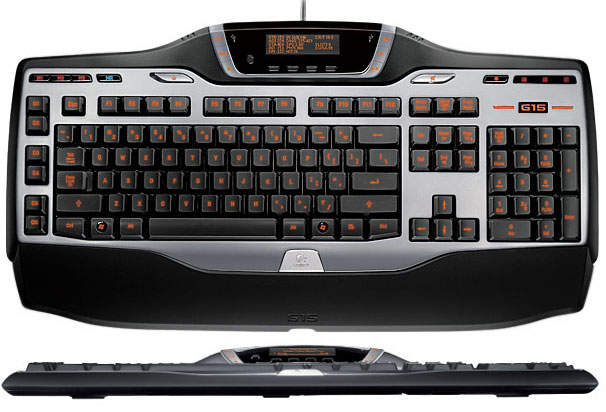
LIST OF THE KEYBOARD SHORTCUT

General keyboard shortcuts

  • CTRL+C (Copy)
  • CTRL+X (Cut)
  • CTRL+V (Paste)
  • CTRL+Z (Undo)
  • DELETE (Delete)
  • SHIFT+DELETE (Delete the selected item permanently without placing the item in the Recycle Bin)
  • CTRL while dragging an item (Copy the selected item)
  • CTRL+SHIFT while dragging an item (Create a shortcut to the selected item)
  • F2 key (Rename the selected item)
  • CTRL+RIGHT ARROW (Move the insertion point to the beginning of the next word)
  • CTRL+LEFT ARROW (Move the insertion point to the beginning of the previous word)
  • CTRL+DOWN ARROW (Move the insertion point to the beginning of the next paragraph)
  • CTRL+UP ARROW (Move the insertion point to the beginning of the previous paragraph)
  • CTRL+SHIFT with any of the arrow keys (Highlight a block of text)
  • SHIFT with any of the arrow keys (Select more than one item in a window or on the desktop, or select text in a document)
  • CTRL+A (Select all)
  • F3 key (Search for a file or a folder)
  • ALT+ENTER (View the properties for the selected item)
  • ALT+F4 (Close the active item, or quit the active program)
  • ALT+ENTER (Display the properties of the selected object)
  • ALT+SPACEBAR (Open the shortcut menu for the active window)
  • CTRL+F4 (Close the active document in programs that enable you to have multiple documents open simultaneously)
  • ALT+TAB (Switch between the open items)
  • ALT+ESC (Cycle through items in the order that they had been opened)
  • F6 key (Cycle through the screen elements in a window or on the desktop)
  • F4 key (Display the Address bar list in My Computer or Windows Explorer)
  • SHIFT+F10 (Display the shortcut menu for the selected item)
  • ALT+SPACEBAR (Display the System menu for the active window)
  • CTRL+ESC (Display the Start menu)
  • ALT+Underlined letter in a menu name (Display the corresponding menu)
  • Underlined letter in a command name on an open menu (Perform the corresponding command)
  • F10 key (Activate the menu bar in the active program)
  • RIGHT ARROW (Open the next menu to the right, or open a submenu)
  • LEFT ARROW (Open the next menu to the left, or close a submenu)
  • F5 key (Update the active window)
  • BACKSPACE (View the folder one level up in My Computer or Windows Explorer)
  • ESC (Cancel the current task)
  • SHIFT when you insert a CD-ROM into the CD-ROM drive (Prevent the CD-ROM from automatically playing)
  • CTRL+SHIFT+ESC (Open Task Manager)

Dialog box keyboard shortcuts

If you press SHIFT+F8 in extended selection list boxes, you enable extended selection mode. In this mode, you can use an arrow key to move a cursor without changing the selection. You can press CTRL+SPACEBAR or SHIFT+SPACEBAR to adjust the selection. To cancel extended selection mode, press SHIFT+F8 again. Extended selection mode cancels itself when you move the focus to another control.
  • CTRL+TAB (Move forward through the tabs)
  • CTRL+SHIFT+TAB (Move backward through the tabs)
  • TAB (Move forward through the options)
  • SHIFT+TAB (Move backward through the options)
  • ALT+Underlined letter (Perform the corresponding command or select the corresponding option)
  • ENTER (Perform the command for the active option or button)
  • SPACEBAR (Select or clear the check box if the active option is a check box)
  • Arrow keys (Select a button if the active option is a group of option buttons)
  • F1 key (Display Help)
  • F4 key (Display the items in the active list)
  • BACKSPACE (Open a folder one level up if a folder is selected in the Save As or Open dialog box)

Microsoft natural keyboard shortcuts

  • Windows Logo (Display or hide the Start menu)
  • Windows Logo+BREAK (Display the System Properties dialog box)
  • Windows Logo+D (Display the desktop)
  • Windows Logo+M (Minimize all of the windows)
  • Windows Logo+SHIFT+M (Restore the minimized windows)
  • Windows Logo+E (Open My Computer)
  • Windows Logo+F (Search for a file or a folder)
  • CTRL+Windows Logo+F (Search for computers)
  • Windows Logo+F1 (Display Windows Help)
  • Windows Logo+ L (Lock the keyboard)
  • Windows Logo+R (Open the Run dialog box)
  • Windows Logo+U (Open Utility Manager)

Accessibility keyboard shortcuts

  • Right SHIFT for eight seconds (Switch FilterKeys either on or off)
  • Left ALT+left SHIFT+PRINT SCREEN (Switch High Contrast either on or off)
  • Left ALT+left SHIFT+NUM LOCK (Switch the MouseKeys either on or off)
  • SHIFT five times (Switch the StickyKeys either on or off)
  • NUM LOCK for five seconds (Switch the ToggleKeys either on or off)
  • Windows Logo +U (Open Utility Manager)

Windows Explorer keyboard shortcuts

  • END (Display the bottom of the active window)
  • HOME (Display the top of the active window)
  • NUM LOCK+Asterisk sign (*) (Display all of the subfolders that are under the selected folder)
  • NUM LOCK+Plus sign (+) (Display the contents of the selected folder)
  • NUM LOCK+Minus sign (-) (Collapse the selected folder)
  • LEFT ARROW (Collapse the current selection if it is expanded, or select the parent folder)
  • RIGHT ARROW (Display the current selection if it is collapsed, or select the first subfolder)

Shortcut keys for Character Map

After you double-click a character on the grid of characters, you can move through the grid by using the keyboard shortcuts:
  • RIGHT ARROW (Move to the right or to the beginning of the next line)
  • LEFT ARROW (Move to the left or to the end of the previous line)
  • UP ARROW (Move up one row)
  • DOWN ARROW (Move down one row)
  • PAGE UP (Move up one screen at a time)
  • PAGE DOWN (Move down one screen at a time)
  • HOME (Move to the beginning of the line)
  • END (Move to the end of the line)
  • CTRL+HOME (Move to the first character)
  • CTRL+END (Move to the last character)
  • SPACEBAR (Switch between Enlarged and Normal mode when a character is selected)

Microsoft Management Console (MMC) main window keyboard shortcuts

  • CTRL+O (Open a saved console)
  • CTRL+N (Open a new console)
  • CTRL+S (Save the open console)
  • CTRL+M (Add or remove a console item)
  • CTRL+W (Open a new window)
  • F5 key (Update the content of all console windows)
  • ALT+SPACEBAR (Display the MMC window menu)
  • ALT+F4 (Close the console)
  • ALT+A (Display the Action menu)
  • ALT+V (Display the View menu)
  • ALT+F (Display the File menu)
  • ALT+O (Display the Favorites menu)

MMC console window keyboard shortcuts

  • CTRL+P (Print the current page or active pane)
  • ALT+Minus sign (-) (Display the window menu for the active console window)
  • SHIFT+F10 (Display the Action shortcut menu for the selected item)
  • F1 key (Open the Help topic, if any, for the selected item)
  • F5 key (Update the content of all console windows)
  • CTRL+F10 (Maximize the active console window)
  • CTRL+F5 (Restore the active console window)
  • ALT+ENTER (Display the Properties dialog box, if any, for the selected item)
  • F2 key (Rename the selected item)
  • CTRL+F4 (Close the active console window. When a console has only one console window, this shortcut closes the console)

Remote desktop connection navigation

  • CTRL+ALT+END (Open the Microsoft Windows NT Security dialog box)
  • ALT+PAGE UP (Switch between programs from left to right)
  • ALT+PAGE DOWN (Switch between programs from right to left)
  • ALT+INSERT (Cycle through the programs in most recently used order)
  • ALT+HOME (Display the Start menu)
  • CTRL+ALT+BREAK (Switch the client computer between a window and a full screen)
  • ALT+DELETE (Display the Windows menu)
  • CTRL+ALT+Minus sign (-) (Place a snapshot of the entire client window area on the Terminal server clipboard and provide the same functionality as pressing ALT+PRINT SCREEN on a local computer.)
  • CTRL+ALT+Plus sign (+) (Place a snapshot of the active window in the client on the Terminal server clipboard and provide the same functionality as pressing PRINT SCREEN on a local computer.)

Microsoft Internet Explorer navigation

  • CTRL+B (Open the Organize Favorites dialog box)
  • CTRL+E (Open the Search bar)
  • CTRL+F (Start the Find utility)
  • CTRL+H (Open the History bar)
  • CTRL+I (Open the Favorites bar)
  • CTRL+L (Open the Open dialog box)
  • CTRL+N (Start another instance of the browser with the same Web address)
  • CTRL+O (Open the Open dialog box, the same as CTRL+L)
  • CTRL+P (Open the Print dialog box)
  • CTRL+R (Update the current Web page)
  • CTRL+W (Close the current window)

Other information

  • Some keyboard shortcuts may not work if StickyKeys is turned on in Accessibility Options.
  • Some of the Terminal Services client shortcuts that are similar to the shortcuts in Remote Desktop Sharing are not available when you use Remote Assistance in Windows XP Home Edition.
  • Some of the other Microsoft Knowledge Base articles that have similar information as this article are:
    126449  (http://support.microsoft.com/kb/126449/ ) Keyboard shortcuts for Windows
    255090  (http://support.microsoft.com/kb/255090/ ) Keystroke navigation in Windows 2000 Help
  • Refer to Help for the most current information regarding keyboard navigation and visit the following Microsoft Accessibility Web site for additional information that relates to keyboard shortcuts and keyboard navigation in Windows and other Microsoft products:
    http://www.microsoft.com/enable (http://www.microsoft.com/enable)


Thursday, December 2, 2010

LIST OF PROGRAMMING LANGUAGE

A

  • A+. 2001 Similar to APL.
  • A#. Object oriented, functional programming language, now replaced by Aldor.
  • Abap. Advanced Business Application Programming. Cobol-like programming language for Sap web application servers.
  • Abc.
  • Action! Compiler design programming language, as Micro-SPL.
  • ActionScript. 2004. Version of ECMAScript for Flash.
  • Actor. 1986. Programming language and also a concept for language design (actor oriented).
  • Ada. 1983.
  • Afnix. 1998 Functional, formerly Aleph.
  • Agena. 2009. Inspired from Algol and C.
  • Aldor.
  • Aleph. See Afnix.
  • Algae. Interpreted language for numerical analysis.
  • Algo. Algebraic programming language.
  • Algol. 1958. Followed by Algol 60, Algol W (Wirth) and Algol 68. Has inspired Pascal.
  • Alma-0. Imperative and logical programming language.
  • Alphard. 1974 Name of the brightest star in Hydra. Pascal-like.
  • Altran. 1968. Fortran variant.
  • AmigaE. Language inspired by Ada, C++, Lisp.
  • Ampl. Modeling Language for Mathematical Programming.
  • Anubis. 2000. Functional, not ML, language.
  • ApeScript.
  • Apl. 1962. A Programming Language Compiler FAQ.
  • AppleScript. 1993. English-like scripting language.
  • APT. Automatically Programmed Tool. High-level language for numerically controlled machines.
  • Arduino. A version of the wiring language for the open source USB controller Arduino.
  • Argos. Synchronous language.
  • ARS. Abstraction, Reference and Synthesis. An orientation. Inspired programming languages. An ARS++ compiler exists.
  • AspectJ. Java implementation of Aspect oriented programming. Compiler Development
  • Assembly.
  • ATLAS. Several minor languages with this name.
  • Autocode. 1952. Several versions of this primitive historical language.
  • AutoIt. Automation language. Originally for scripting Windows applications, now more general.
  • Averest. Synchronous language, replaced by Quartz.
  • Awk. 1978. See also gawk, nawk, mawk.
  • Axiom. Computer Algrebra System, actually a set of tools that uses the A# language.

B

  • B. 1969.
  • Bash. Bourne-Again shell. Actually an interpreter for Bourne shell.
  • Basic. 1964.
  • BAL. Assembly language for the IBM 360.
  • Bcpl. 1966. Basic Combined Programming Language. Compiler. Inspired B which in turn inspired C.
  • BeanShell.
  • Beta.
  • Bigwig.
  • Bistro. 1999 Smaltalk and Java like.
  • Bliss.
  • Boo. 2004.
  • Bourne shell. (sh) 1978. Language of commands for Unix.
  • Bpel. Business Process Execution Language

C

  • C. 1972.
  • C--. Portable intermediate language. Subset of C.
  • C++. 1980. The standard is C++ 98 and C++ 09 should succeed in 2009.
  • C#. 2000.
  • C Shell.
  • Caché ObjectScript. Procedural language with database functions. Compatible with Mumps.
  • Caml. Categorical Abstract Machine Language.
  • Cayenne. Functionnal, near Haskell with Java features.
  • Cecil. 1992 Near Modula and Objective C.
  • CeeBot.
  • CFScript. JavaScript part of ColdFusion. See also CFML.
  • Cg.
  • Charity. Functional and categorical programming language.
  • CHILL. Language for telecommunications. Chill 96 is object oriented and generic.
  • CHR. Constraint Handling Rules.
  • Chrome.
  • ChucK. Multimedia concurrent language.
  • Cilk. Multi-threaded and concurrent based on C.
  • Clarion.
  • Clean. Concurrent Clean.
  • Clipper. 1984.
  • CLIPS. C Language Integrated Production System. See Cool.
  • Clojure. 2007. Lisp-like for the java virtual machine.
  • CLOS. See Common Lisp.
  • Clu. Has inspired Ruby.
  • Cobol. 1959. COmmon Business Oriented Language. Inspired by Flow-matic, Fortran. ANSI standards are Cobol 58, 74, 85 and 2002 object oriented.
  • CobolScript.
  • Code. Visual parallel programming system.
  • ColdFusion. 2001. Java compatible combination of CFScript and CFML, used for dynamic web processing.
  • Comal. 1973.
  • CIL. Common Intermediate Language.
  • Common Lisp.
  • Component Pascal.- See Oberon.
  • Comit.- List or string processing language
  • Cool.
  • Coral66.
  • Corn.
  • Cowsel. See POP1.
  • CPL. Predecessor of BCPL.
  • Csh. See C Shell.
  • Curl.
  • Curry.
  • Cyclone.

D

  • D. 2000.
  • Databus. See PL/B.
  • Dark Basic. Language for game creation.
  • Datalog. Actually a deductive tool using Prolog.
  • DCL. Digital Command Language. Scripting PL used on Digital computers.
  • Delphi. 1995. Created by Borland, now at Embarcadero.
  • Dibol.
  • Disco. 1992.
  • Dylan. 1992. DYNamic LANguage. Unlike Perl, only one way to do a thing.

E

  • E. See also AmigaE.
  • Ease. See Csp and Linda.
  • EcmaScript. 1997.
  • Edinburgh IMP. See IMP.
  • Eiffel. 1986.
  • Elan. 1974
  • elastiC.
  • Emacs Lisp.
  • EGL. Enterprise Generation Language
  • Epigram. A concurrent P. L.
  • Erlang. 1998. ERicsson LANguage and also Agner Krarup Erlang. Functional, concurrent PL and runtime.
  • Escapade. Server-side programming
  • Esterel.
  • Euclid.
  • Euphoria. 1993. Typed scripting interpreted language.
  • Euler. Successor to Algol 60. Dynamically typed.
  • Exec. See Rexx.

F

  • F.
  • F#.
  • Fabric. 2010, Cornell. Based on Java and Jif, it provides security on data used and stored.
  • Factor. 2003.
  • Fantom. 2005. C-like running on JVM and .NET.
  • Felix.
  • Ferite.
  • FL.
  • Flow-Matic. 1954.
  • Focal.
  • Focus.
  • Foil.
  • Forth. 1977. FOuRTH. Stack oriented. Used to command machines including boot of computers.
  • Fortran. 1957. FORmula TRANSlator. Standard Fortran II (58), IV (61), 66, 77 (Procedural), 90, 95, 2003 (Object oriented). Language for scientific computations. Other dialects are S-Fortran, SFtran, QuickTran, LTRTran, HPF, Co-Array Fortran.
  • Fortress. Designed for high performance computing.
  • FP.
  • Frink.

G

  • G.
  • Gams. General Algebraic Modeling System.
  • Gml. Game Maker Language.
  • Go. 2009. Created by Google, is C and Pascal-like. It is concurrent with a garbage collector.
  • Godiva.
  • Goedel.
  • Gosu. 2010. Java-like running on the JVM, provides extended types.
  • GPSS.
  • Groovy. Scripting language for Java.

H

  • Hal/S. Real-time aerospace programming language
  • HaScript.
  • Haskell. 1990. Functional language. Haskell 98 follows. In 2002 version a lazy functional language. Compiler.
  • Heron.
  • HLA. High Level Assembly
  • Hugo.
  • HyperTalk. Hypernext and Supercard are Hypercard-like tools.
  • H2o.

I

  • IAL. 1958.
  • ICI.
  • Icon. 1977-79.
  • IDL. 1977. Interface Definition Language. A family of descriptives languages. Compiler.
  • IMP.
  • Inform.
  • IPL. 1956. Information Processing Language. First in list processing but replaced by Lisp.
  • Intercal. 1972.
  • IO.
  • Iswim. 1966.

J

  • J. 1990. Is a rework of APL.
  • Jade.
  • Jal.
  • Janus. Predecessor of Toontalk.
  • Java. 1994.
  • JavaFX Script. 2008.
  • JavaScript. 1996.
  • JCL.
  • Jif. 2001. Cornell. Java with control on information access.
  • Join Java. Augmented version of Java.
  • Joss. 1963. Predecessor of Mumps.
  • Joule.
  • Jovial. Jules Own Version of the International Algorithmic Language.
  • Joy.
  • JSP. See Java.
  • JScript. See EcmaScript.
  • Jython. See Python.

K

L

  • LabView.
  • Lagoona.
  • Lava.
  • Leda.
  • Leopard.
  • Lexico.
  • Lfyre.
  • Limbo. Concurrent langage, for distributed applications on the Inferno OS. Successor to Alef.
  • Linc.
  • Lingo. Several languages: Macromedia Lingo, Lingo Allegro, Linn Lingo, Lindo Lingo.
  • Lisaac.
  • Lisp. 1958. LISt Processing.
  • Logo. 1966-68. Lisp without parenthesis. Learn programming by moving a graphical turtle. Compiler. (.Net)
  • Lua. 1993. (Moon in portuguese). Scripting C-like language used mainly as extension to C.
  • Lucid.
  • Lush.
  • Lustre.
  • LYaPAS.

M

  • M from Microsoft. Modeling language.
  • M. See Mumps.
  • M4.
  • MAD. See IAL, Algol.
  • Magma.
  • Maple.
  • Mary.
  • Mathematica. 1988. Programming language that uses algebraic notation for expressions.
  • Matlab.
  • Mercury. 1995. Functional logic programming language. Ported to C, Java, IL (.Net).
  • Mesa.
  • Metal.
  • Metro. 2008. Design language from Microsoft for Windows Phone, Media Center and mobile devices. (Link on a ppc file readable with LibreOffice).
  • MicroScript.
  • Mimic.
  • Miranda. 1989. Functional language, has inspired Haskell.
  • Miva.
  • Mixal. "Mix Assembly Language" for the Mix computer of Donald Knuth.
  • ML.
  • Moby.
  • Modula-2. 1980.
  • Modula-3. 1989.
  • Mondrian. Haskell-like.
  • Mortran. See Fortran.
  • Moto.
  • MSIL. See CIL.
  • Mumps. 1967. Massachusetts General Hospital Utility Multi-Programming System. Database oriented language.

N

  • Napier 88. Persistent language.
  • Nemerle.
  • Nesl.
  • NetRexx. 1996.
  • Ngl.
  • Nial.
  • Nice.
  • Nickle.
  • Noop. 2009. Java-like language designed by Google to syntactically encourage good coding practices and discouraging the worst offenses.
  • Nu. 2007. Near Lisp and Ruby.
  • Nosica.

O

  • o:Xml.
  • Oberon. 1985-88. (Moon of Uranus). Reflective language. Derived from Modula-2.
  • Objective-C. 1982. C plus Smalltalk, used in GNUStep environment.
  • Objective Caml. 1996. ML-derived, functional and imperative language. Extends Caml.
  • Objective J. 2008. Sur-ensemble de JavaScript utilisant la librairie Ojective-C.
  • Objective Modula 2. 2006. Combination of Objective-C, Smalltalk and Modula 2.
  • Obliq.
  • OCaml. See Objective Caml above.
  • Occam. (Occam-Pi, occam-Ï€)
  • Octave. For numerical computation.
  • Opal.
  • OPL. Open (or Organizer) Programming Language.
  • Ops5.
  • Orc. A language for distributed and concurrent programming, working through sites. May be used for Web scripting.
  • Oz.

P

Q

  • Q.
  • QuakeC. Version of C for the Quake game.
  • QML. Or QPL. Set of programming languages for quantum computers.
  • QML. Declarative language to design user interfaces, similar to JavaFX, for Qt.

R

  • R. 1998. Language and environment for statistical computation and graphics. Derived from the S language it is near Scheme.
  • R++. C++ with rules added.
  • Rascal. Version of Pascal for kids.
  • Ratfiv. Version of Ratfor for a computer.
  • Ratfor. 1975. Version of Fortran.
  • RC. Rc shell, Plan9 command language ported further to Unix.
  • Realbasic.
  • Rebol. 1997. Relative Expression Based Object Language. Dynamic language with numerous predefined types.
  • Refal. 1968. REcursive Functions Algorithmic Language.
  • Revolution. Version of Hypertalk.
  • RPG. 1960+ Report Program Generator. Query tool extended in a programming language for IBM. Main versions are RPG II, RPG III, RPG/400, RPG IV.
  • RPL. Langage for calculators similar to Forth.
  • Rexx. 1979. REstructured eXtended eXecutor. Designed for IBM OS scripting but ported on other platforms.
  • Rigal.
  • Rlab.
  • RSL. Robot Scripting Language.
  • Ruby. 1995 Follows a "principle of least surprise", each thing must be intuitive. Scripting, multi-paradigm, object oriented.

S

  • S. (S-plus) See Tinn-R. The R framework hold an implementation.
  • S2.
  • S-Lang.
  • Sail. Stanford Artificial Intelligence Language
  • SAM76. Implementation of Trac.
  • SAS. Fortran specialized in statistical reports.
  • Sather. Eiffel-like language.
  • Scala. 2004.
  • Scheme. 1975.
  • Scratch. 2007. Educational language developed by MIT consisting of blocks to be assembled. The same principle was used for the OpenBlocks Java library.
  • Scriptol. 2001 Object oriented and XML oriented. Interpreter, PHP compiler.
  • Sed. Stream EDitor.
  • Seed7. 2005.
  • Self. 1993.
  • SETL. Has inspired ABC, predecessor of Python.
  • Short Code. 1949. Precursor of programming languages.
  • SimsScript. Fortran specialized in mathematical simulations.
  • Simmunity. Language for Internet based on APL
  • Simula. 1962.
  • SISAL. Streams and Iteration in a Single Assignment Language
  • Slate.
  • Slip. Symmetric LIst Processor. Actually an extension to fortran and other programming languages.
  • Smalltalk.
  • Snobol. 1962. Snobol 3 (1965), 4 (1966).
  • SOAP. Symbolic Optimal Assembly Program, IBM 650 assembly language.
  • Spitbol. SPeedy ImplemenTation of snobOL. Actually a compiled version of Snobol.
  • Snowball.
  • SPARK.
  • SP/k. Subset of PL/1, used for teaching.
  • SPL.
  • Squeak.
  • SR. Synchronizing Resources
  • SSL.
  • Standard ML.
  • Subtext.
  • SuperCollider.
  • SuperX++. 2001. XML language.
  • SyncCharts.
  • Synergy/DE.

T

  • T. 1980+ A version of Lisp.
  • TACL. Tandem Advanced Command Language. Scripting language used by Hewlett-Packard.
  • Tacpol. Implementation of PL/I, was used by US army.
  • TADS. Text Adventure Development System. A language to make games.
  • TAL. Transaction Application Language, cross between C and Pascal used for Tandem computers.
  • Transcript. Voir Revolution.
  • Tcl. 1988. Tool Command Language. Tk is the graphical toolkit.
  • Telcomp. 1965. Derived from Joss, conversationnal language used on PDP computers until 1974. Influenced Mumps.
  • Tempo.
  • Tinn-r.
  • Titanium.
  • TI-Basic.Basic-like language for calculators.
  • Tom.
  • Tpu. Scripting programming language for VAX/VMS (not verified).
  • Trac. 1960+. Text Reckoning And Compiling.
  • TTCN-3. Testing and Test Control Notation. Formerly: "Tree and Tabular Combined Notation".
  • Turing. 1982. Pascal-like, derived from Euclid.
  • Tutor. 1965. CAI programming language.
  • TXL. 1988. Derived from Turing above.

U

  • Ubercode. 2005. Cross between Eiffel and Basic.
  • Unicon. Unified Extended Dialect of Icon.
  • UnrealScript. Scripting games.
  • UrbiScript. Robot programming language.
  • UML. Unified Modeling Language. Visual programming language.

V

  • Verilog HDL. A hardware description language.
  • VHDL. VHSIC Hardware Description Language.
  • VDS. Visual DialogScript.
  • Virt. Pascal-like with Prolog features, for Artificial Intelligence problem solving. Interpreter.
  • Visual Basic. 1991.
  • Visual Basic .NET.
  • VBScript.Visual Basic Script Edition.

W

  • Water. XML-embedded programming language.
  • Whitespace. Actually a joke, an "esoteric" programming language, but with a real interpreter!
  • Winbatch. Scripting language for Windows.
  • Wiring. C-like language dedicated to electronics.

X

  • XOTcl. Object oriented version of TCL.
  • XPL. 1967. Derived from PL/I, for compiler writing.
  • XL. Implements concept programming.

Y

  • YAFL.
  • Yorick. Language for scientific calculations and simulations.

Z

  • Z notation. Visual specification of programs like UML.
  • ZPL.
  • ZOPL. (Not verified)
  • ZUG. (Not verified)

Markup languages and data formats

  • CFML. ColdFusion Markup Language.
  • EmotionML. An XML dialect for representing emotions, by the W3C..
  • HTML. HyperText Markup Language.
  • PostScript. 1985.
  • Protocol Buffers. By Google, became open in 2008.
  • RDF. Resource Description Framework.
  • SGML. 1969.
  • SVG. Scalable Vector Graphic.
  • Tex.
  • XAML. eXtensible Application Markup Language.
  • XBL. eXtensible Bindings Language. For widget creating in Xml based languages.
  • Xforms. Web graphical interactive user interface.
  • XHTML. XML HTML.
  • XML. eXtensible Markup Language.
  • XUL. XML-based User interface Language.

Query or database oriented languages

  • Aubit-4GL. See Informix.
  • D4 or Dataphor. Based on Tutorial D.
  • Dataflex. 1980. Database programming language.
  • dBase. programming language.
  • Hypertalk. 1987. Card language for Apple.
  • Informix-4GL. 4GL means for fourth generation specialized language. Informix is specialized in databases and reports.
  • pl/SQL. SQL extension.
  • SQL. 1987. Structured Query Language.
  • Tutorial D.
  • Visual Foxpro. Derived from dBase.
  • xBaseScript. (xbScript) Clipper database scripting.


Monday, November 29, 2010

What is COMPUTER SCIENCE


Computer science or computing science (sometimes abbreviated CS) is the study of the theoretical foundations of information and computation, and of practical techniques for their implementation and application in computer systems.[1][2][3][4] It is frequently described as the systematic study of algorithmic processes that create, describe, and transform information. Computer science has many sub-fields; some, such as computer graphics, emphasize the computation of specific results, while others, such as computational complexity theory, study the properties of computational problems. Still others focus on the challenges in implementing computations. For example, programming language theory studies approaches to describe computations, while computer programming applies specific programming languages to solve specific computational problems, and human-computer interaction focuses on the challenges in making computers and computations useful, usable, and universally accessible to people.
The general public sometimes confuses computer science with careers that deal with computers (such as information technology), or think that it relates to their own experience of computers, which typically involves activities such as gaming, web-browsing, and word-processing. However, the focus of computer science is more on understanding the properties of the programs used to implement software such as games and web-browsers, and using that understanding to create new programs or improve existing ones.

HOW TO BACKUP YOUR FILES IN YOUR COMPUTER

Why is it important to backup your files?
•    Computer Hard Drives are a mechanical device, they do fail!
   •    Power outages/blips
   •    Hardware failure
   •    Viruses
•    Comfort Level : So you know you have them in a safe place!
•    TAC does not backup your data on your hard drive(s)!
•    When/if TAC or our external vendor (Computer Showcase) replaces your hard drive or delivers a new system, we will do our best to migrate what data is in the My Documents folder but we cannot guarantee everything will be migrated.
Windows Backup is Simple to Use and Schedule
•    It comes with the Windows Operating System
•    It creates a container file that can be stored on most any removable or external storage device
•    You can use Windows Backup to Restore any or all files to any storage device.
•    It retains the file ownership and dates
•    It can be used in a easy to follow ?Wizard? mode


Windows Backup Utility - Backing Up Your Data
To access Windows Backup choose "Start-Programs-Accessories-System Tools-Backup"
The following screen will appear:
Click "Next" to run Windows Backup in Wizard Mode


Do you wish to Backup or Restore data files?
Click on the Back up files and settings radio button and click "Next".
For this training session we are going to choose "My documents and settings" which will include everything in the My Documents folder of the account that is logged in as well as the favorites, desktop icons and any cookies that may be available. Click this radio button and click "Next".


•    Choose the target location where you would like to store your backup data by either clicking on the down arrow and choosing an available drive letter or ?Browse? to find a network share or other location. Note that Windows Backup cannot write directly to a CD or DVD disc.
•    Type in a name for the backup container file you will create. You can give it any file name you wish. For this example we will change it to :
   •    My Documents and Settings Backup - mm-dd-yyyy
Click "Next"
That is it! These 5 screens are all you need to create your first backup container file. If you do not wish to schedule this backup to run at set dates or times, then click ?Finish? and the backup process will begin running. If you would like to schedule the backup to run at specific times then click on the "Advanced" button.
Advanced Options for Windows Backup

Types of backup

The Backup utility supports five methods of backing up data on your computer or network.

A copy backup copies all selected files but does not mark each file as having been backed up (in other words, the archive attribute is not cleared). Copying is useful if you want to back up files between normal and incremental backups because copying does not affect these other backup operations.
A daily backup copies all selected files that have been modified the day the daily backup is performed. The backed-up files are not marked as having been backed up (in other words, the archive attribute is not cleared).
A differential backup copies files created or changed since the last normal or incremental backup. It does not mark files as having been backed up (in other words, the archive attribute is not cleared). If you are performing a combination of normal and differential backups, restoring files and folders requires that you have the last normal as well as the last differential backup.
An incremental backup backs up only those files created or changed since the last normal or incremental backup. It marks files as having been backed up (in other words, the archive attribute is cleared). If you use a combination of normal and incremental backups, you will need to have the last normal backup set as well as all incremental backup sets in order to restore your data.
A normal backup copies all selected files and marks each file as having been backed up (in other words, the archive attribute is cleared). With normal backups, you need only the most recent copy of the backup file or tape to restore all of the files. You usually perform a normal backup the first time you create a backup set.
Backing up your data using a combination of normal backups and incremental backups requires the least amount of storage space and is the quickest backup method. However, recovering files can be time-consuming and difficult because the backup set can be stored on several disks or tapes.
Backing up your data using a combination of normal backups and differential backups is more time-consuming, especially if your data changes frequently, but it is easier to restore the data because the backup set is usually stored on only a few disks or tapes.
We recommend just choosing a type of NORMAL and each time this runs the complete set of data will be backed up and although this creates the largest size of backup files it is the easiest to restore.
Choose Normal and Click "Next"
•    Verifying your backup will double (or more) the total time for the backup to complete but if you wish to make sure all your data is completely read and written to the destination area you could click this box.
•   ; NOTICE: we have had some backup routines fail unless the Disable volume shadow copy box is checked. If it is checked, then at the time the backup routine is running, any files that you may have open will not be copied. This is normally not an issue because most users will schedule backups to run during non-work hours so we recommend that you DO CHECK this box.
Check the Disable volume shadow copy and click "Next"
We recommend that you replace the existing backups otherwise you will continue to use up more and more disk space and the backups will eventually fail. Plus, since we recommend the type Normal backup there is no need to continue appending the data to a full normal copy you previously made anyway.
Click the Replace the existing backups radio button.
Check the Allow only the owner and the Administrator access to the backup data and to any backups appended to this medium so that only you have access to this data. Most any file that gets stored on external storage can be viewed by anyone who logs into the machine so this option is essential. In addition, the administrator should be allowed access in case you cannot get to this backup data file as a safe guard in the event of any unforeseen issues.
Check this box and click "Next"
Click on the Later radio button click on the Set Schedule Button to schedule when this backup will run.
Choose Weekly and a start time (after hours preferably) and schedule it to run every week (we recommend Tuesday - Friday) but choose other days if your data changes on other days. Click OK to continue.
You will be prompted to enter a username and password, enter your EUP\USERNAME and password and confirm it so this process can run under your credentials. Click ok and this will bring you back to the previous backup wizard screen.
Click "Next" (you may be asked to enter your username and password once again, we do not know why this occurs but enter it one more time and click OK).
Congratulations! You have configured and scheduled your backup process to run unattended. Click FINISH to exit the wizard.
NOTE: You can view your schedule job and get a status by going to Start-Settings-Control Panel and double clicking on the ?Scheduled Tasks? icon and reviewing the Next Run Time and Last Run Time of your scheduled task to ensure that it is still scheduled to run.
IMPORTANT NOTE: Due to a security design in the Windows Operating System, you must remain logged in for scheduled tasks to execute. We recommend that you LOCK your system when you leave or walk away from your office. You can do this by pressing CTRL-ALT-Delete keys and clicking on the Lock Computer button or a quicker way is to just hold down the Windows key and press the L key. You will still be logged in and only you can "unlock" the system with your username and password. We also recommend powering off your monitor (but not your system of course) when you leave at the end of the work day.

Windows Backup Utility - Restoring Your Data
To access Windows Backup choose "Start-Programs-Accessories-System Tools-Backup"
The following screen will appear:
Click "Next" to run Windows Backup in Wizard Mode

Do you wish to Backup or Restore data files?
Click on the Restore files and settings radio button and click "Next"
You can select an entire backup container file to restore or expand the list of backup files by double clicking on the name in the left window pane. You can expand through the levels to find the folder(s) you need and then in the right window pane you can check the folder(s) and/or file(s) you need to restore. Note a red exclamation mark on any folder(s) or file(s) depicts that a file exists that was not copied during the backup process. More than likely this scenario exists because the file was in use by some other application when the backup process tried to copy it.
Click "Next" once you have selected the data you need.
At this point you can click the Finish button and the restoration process will begin to restore the folder(s) and file(s) you choose.However, if you wish to change where and how the files should be restored and the security settings then you can click on the Advanced button. By default the restore function will check to see if the file(s) exist and compare them and only restore them if they are newer than any existing files with the same name. This is normally all that you would need. We will not go through the advanced settings in this document but feel free to review these when you run the restore process by clicking on the Advanced button.
Once you click the finish button, the restoration process status window will pop up and show you the ongoing status. When the process completes, the status window will display an option to review a report of what was done. This is a useful report to review especially if there are errors with the process. Feel free to experiment with smaller data files to restore by choosing various advanced settings and reviewing the reports that are created. For example, you may have some data files that you want to restore to a removable USB key rather than placing them back on your local hard drive, choose the advanced button and route the destination to your USB drive. Enjoy.